Wednesday, 15 November 2017

How To Make Money From YouTube


How To Make Money From YouTube


Becoming a partner and making money on YouTube used to be hard. Only a select few were allowed  Now you can make money on YouTube just by enabling monetization in your account settings. As long as you created all of your own content, or have a license to use content that you did not (i.e royalty free music), you are almost guaranteed acceptance into YouTube’s partnership program.

It is easy to monetize YouTube videos, but it is not easy to earn money off of them. How much money you make per ad will depend on which ads are run in your videos and how much of a cut YouTube is taking.

 More popular videos get higher paying ads, and more popular YouTubers are able to negotiate better ‘CPM’s with YouTube. CPM means ‘cost per thousand’. YouTubers can expect to make between $0.30 and $2.50 CPM, although there is a lot of variation. If you earn $0.30 for every thousand people who click on an ad then it will take you a long time to make any significant money.

 Create GREAT content and promote your videos well,  it will take a while, but your channel will start to get attention. Once your vlog starts to be successful you might be able to make some real money.

This article will walk you through enabling monetization, including linking your YouTube account with your AdSense account (both of which exist under the umbrella of your Google account). Then, there will be a walkthrough of how to monetize your videos. They will not be automatically monetized after you enable monetization.

10Ten Steps to Monetizing Your Channel

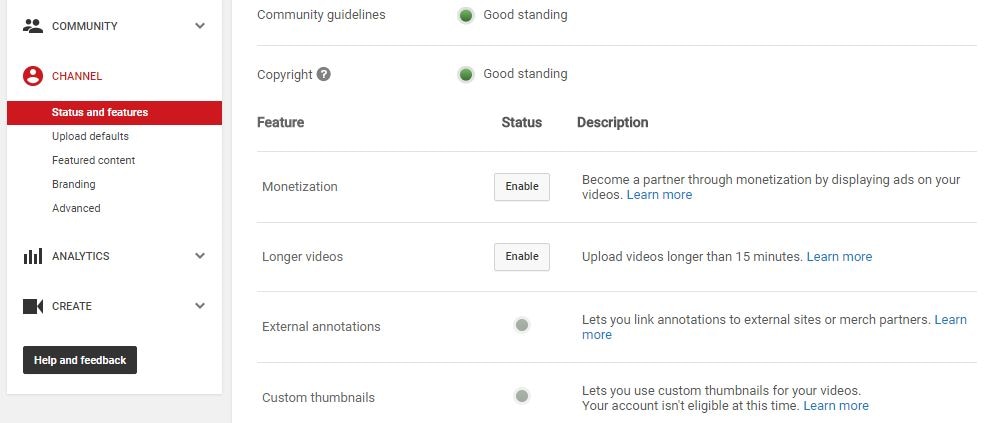
1. Go to your Account Settings and, under Channel, select Status and features.
2. Click on Enable next to Monetization.
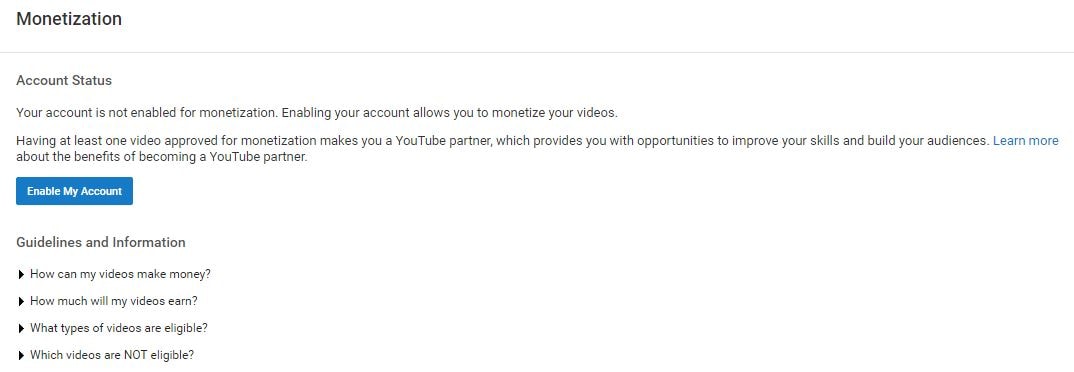
3. In the next screen, click the blue Enable my Account button.
4. The YouTube Partner Program Terms will pop up. Compared to a lot of the “Terms” you are asked to read and agree to when signing up for things online the Partner Terms are fairly short and readable.

5. After reading the terms there are three boxes you will need to check to proceed. The first is to confirm that you read the Terms. The second box is a promise not to click on the ads in your own videos to try to create profits artificially.
The third box requires you to promise not monetize content that you do not own. The most extreme version of this would be stealing somebody else’s video and trying to monetize it on your channel. However, using a song or sound effect in your video you do not have the rights to also counts. There are a lot of places you can get free music to use in your monetized videos, and YouTube’s own Audio Library is one of them.

6. After you have checked all the boxes and moved on you will see a pop up explaining how to monetize your individual videos.
Your channel is now monetized, but you will not be able to earn money until you have linked your channel to your AdSense account.

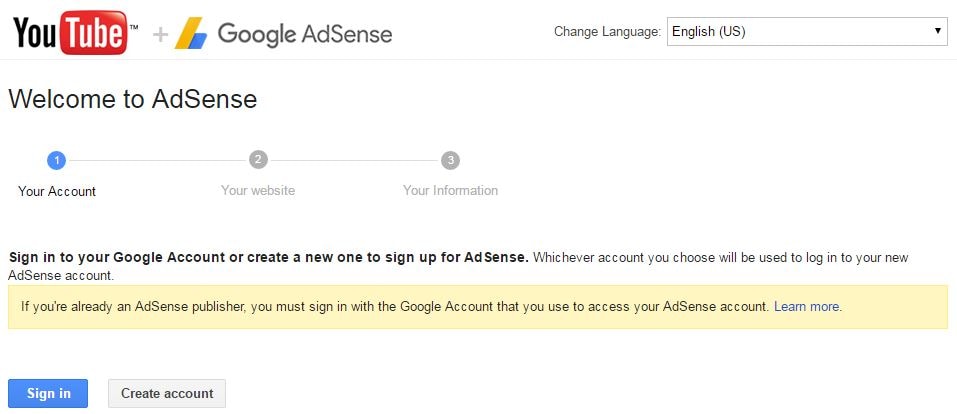
7. There will be a reminder to link your channel and your AdSense account in the next screen. Click on the Link my account button. Or, go to Google.com/adsense and click Sign Up Now. Either method will take you to the Welcome to AdSense page.

8. Click Sign In to sign in to your Google account, which is the same as your YouTube account.
9. After you have signed in it will show you your channel url next to My website and give you a chance to change your language. Click Continue.

10. The last step is to fill out all your contact information before you submit your application. Your approval should come within two days.

  • 02.4 Steps to Monetizing Your Videos

1. Go to your Video Manager and check the boxes next to all the videos you want to enable ads for.

2. Click on Actions and then select Monetize.

3. In the window that pops up you will be given a chance to choose what kinds of ads you want to allow in your videos. You must also specify here if you have included paid product placement in your video.

4. Wait for the review process to finish and ads to start appearing in your videos. If you are using any licensed, royalty free, content (like a music track) then YouTube may ask you to prove you have the rights to it.

STAY STUNED FOR MORE UPDATES

Thursday, 9 November 2017

What Is A Blog?

What Is A Blog? 

A Blog Is a frequently updated online personal  diary or journal.
It is a place to express yourself to the world. A place to share your 💭  and your passions really it is anything you want it to be. For our purpose we will say that is a blog is your own website that you are going to update on an basis 
It is the website your can share your Ideas  and Thoughts to world
Now-a-days thousands of people Searching anything, any word on Google So express yourself and become famous 
Blog:-A Diary that is on the internet 
Blogger :-Blogger are Revolutionizing the way news is shared day by day

Stay stuned for more updates of blog

Saturday, 4 November 2017

Camscanner phone pdf creator

Camscanner-Phone PDF Creator

Scan Documents in to clear Image/PDF to send Fax Or Save to ☁

With this Application You can create a pdf file easily using your smartphone

Just open application and take photo  it will be cropped and save, do this process one by one after that right corner you will see pdf just tap on PDF ,now pdf file will be created

You can crop and and auto enhancing make the texts and graphics look clear and sharp


Auto cropping and smart enhancing
Make the contents more readable

Making annotations or adding customized watermark on docs are made available for you

You can print out instantly documents in Camscanner with nearby printer

In order send documents to other countries you can send directly 📠  documents to over Thirthy(30) Countries right from this Application

For example you have secret files or documents  you can set a password  for viewing important documents

Easily share documents in PDF file format with social media

For Example
You have a previous Question papers just take all photos of question papers and save it ☁ , if you want you can see them easily

We can save all our important documents like Insurance,House papers, car documents, at one place and save place

Download this application
https://play.google.com/store/apps/details?id=com.intsig.camscanner

Please Like And Share This Article With Your Friends Circles

Stay Tuned For More Updates


How to Remove Unwanted Things On Image Using Android Smartphone

How to Remove Unwanted Things On Image Using Android Smartphone


In This Application I'm Going To Tell You About How To Remove Unwanted Content Or Objects In Photos

Touch retouch is a set of tools that offer u all what you need to remove unwanted content from your photos.

Touch retouch is an photo editor Application that allows you to remove unwanted content or objects from any photo, using just your finger and your mobile device


You can Remove Easily Anything In your photo

By this Application One-touch repair Removing small objects quickly and Eliminate distractions from your photos.

You can Remove pimples, skin blemishes stop lights, street signs, bikes,  Or anything

Remove whatever you feel is spoiling your photos


Friday, 3 November 2017

How to Convert Whatsapp Voice Message into Text.

HOW TO CONVERT WHATSAPP VOICE MESSAGE IN TO TEXT

In this application you can convert Whatsapp voice to text
This is a great news for you
read below how to convert WhatsApp voice messages to text,  in Android  Mobiles
I'm using this method on my mobile everyday Vivo V7+ Running Android Marshmallow ,Which Will Working Good

Have you ever been receiving voice messages from WhatsApp and not being able to listen at that time Now you can convert them to text and know in time what your friends communicate, even when the situation does not allow.

After installing  this application
Now just tap on ‘Done’ on the bottom right corner of the screen in order to continue.

Open the Whatsapp chat the chat needs to the Whatsapp voice message that you need to convert in to text

Just, tap and hold over the WhatsApp voice message to select the audio. Now, ta pthe share icon, located at the top of the screen. Then, select the ‘Transcriber’ option from the list.


Thats it , The Transcriber will convert Whatsapp voice to text & it will display the text on your screen


This Application Will Support Following Languages
English, German, Spanish, French, Russian,
Italian,portuguese


Download This Application
https://play.google.com/store/apps/details?id=it.mirko.transcriber


Please Like And Share For More Latest Technology Information


Tuesday, 31 October 2017

Android Secret Codes 2017

Android Secret Codes 2017


>In This World Everyone Want to know about their phones Every Single Details.

>So  I will tell you most useful  and very less-known  important Android codes that can be used to get various kind of important information regarding your smartphone.

>Below This Images You can Get Android Secret codes


>This is very important Information Regarding Your phones

>Don't Forget To Share This Important Android Secret Codes To Your Friends

If you have any doubt you can contact me


Monday, 30 October 2017

IMAGE RESIZER

Image Resizer


>Image resizer is a simple Application
Easy to use Application for resizing single and multiple images

>You can shrink your photos before sending them or uploading them to social media

>If you want to quickly reduce the picture size or resolution, Image resizer is a perfect choice.

>Photo Resizer allows you to easily reduce photo size without losing quality.

>You don’t have to manually save resize image, because they are automatically saved in a separate folder titled ’Pictures/Image sizer' and are accessible via in Gallery application.

>This Application is Totally Free

>After resizing the photos don't lose quality

You can download this application
https://play.google.com/store/apps/details?id=com.format.mpeg.imagesizer.photoeditsiz

Please like And Share For Latest Technology Information 

Sunday, 29 October 2017

JIO PHONE SPECIFICATIONS

Jio Phone detailed specifications


KEY SPECS

Screen Size:-               2.40-inch
Resolution :-              240x320 pixels
Storage:-                     4Gb
Processor:-                 1.2Ghz dual-core
RAM:-                          512MB
Rear Camera:-           2-mega pixesl
Front Camera:-         0.3Mega Pixels
Battery Capacity:-    2000mah

GENERAL

Release date :-             July 2017
Form factor:-               Bar
Battery capacity :-      2000
 (mAh)
Removable battery :- Yes
Colours:-                       Black
SAR value:-                   NA


DISPLAY
Screen size (inches):-  2.40
Touchscreen:-               No
Resolution:-                   240x320 pixels


HARDWARE
Processor:-                    1.2GHz dual-core
Processor make:-         SPRD 9820A/QC8905
RAM:-                             512MB
Internal storage:-        4GB
Expandable storage:-  Yes
Expandable storage:-  microSD
Expandable storage up to:- 128


CAMERA
Rear camera:-            2Mp
Flash:-                          No
Front camera:-          0.3-megapixel


SOFTWARE
Operating System:-   KAI OS


CONNECTIVITY
Wi-Fi :-                         Yes
Wi-Fi standards
supported:-                  NA
GPS:-                             Yes
Bluetooth:-                   Yes, v 4.10
NFC:-                             Yes
Infrared:-                     No
USB OTG:-                     No
Headphones:-              Yes
FM:-                               Yes
Number of SIMs:-        1
SIM Type:-                   Nano-SIM
GSM/CDMA:-               GSM
3G:-                                No
4G/ LTE:-                        Yes
Supports 4G in India (Band 40):-  Yes


SENSORS
Compass/ Magnetometer:-  No
Proximity sensor:-                No
Accelerometer:-                    No
Ambient light sensor:-        No
Gyroscope:-                           No
Barometer:-                           No
Temperature sensor:-          No


About Jio Phone
»Jio Phone mobile was launched in July 2017.

»The phone comes with a 2.40-inch display with a resolution of 240 pixels by 320 pixels.

»The Jio Phone is powered by 1.2GHz dual-core SPRD 9820A/QC8905 processor and it comes with 512MB of RAM. The phone packs 4GB of internal storage that can be expanded up to 128GB via a microSD card.

» As far as the cameras are concerned, the Jio Phone packs a 2-megapixel primary camera on the rear and a 0.3-megapixel front shooter for selfies.

»The Jio Phone runs KAI OS and is powered by a 2000mAh removable battery.

»The Jio Phone is a single SIM (GSM) mobile that accepts a Nano-SIM. Connectivity options include Wi-Fi, GPS, Bluetooth, NFC, Headphones, FM and 4G (with support for Band 40 used by some LTE networks in India).

Saturday, 28 October 2017

High Resolution Wallpapers

High Resolution Wallpapers To Look Your Mobile Great

- Make your screen a work of art: Get awesome wallpapers, everyday, for free!
Loved by 100 Millions users world wide

- Daily updated free and Awesome wallpapers

- This Application Provides Unique And Supreme collection of wallpapers for your mobile screen

- You can Enjoy our Awesome Contents with Simple UI and Great performance.

-In this Application You will get stunning wallpapers you've ever seen

► Simple, fast and light
- OGQ Backgrounds more focuses on wallpaper image itself, to make greater performance.
- You would never have to worry about your memories or battery running out.

► Picking wallpapers
- beautiful wallpapers updated everyday.


- Check out the hottest wallpapers selected by users worldwide.
- All the images include artist’s information, license details and URL of the artist’s webpage.
- More than 30 categories for easy searching. Also provides keywords searching too.

► Setting wallpapers
- Cropping images, filters and various set as wallpapers modes
- Keep your  favorite images by easily saving them to your own device.


Download This Application Only
Backgrounds (HD Wallpapers)

If You Have Any Doubt You Can Contact Me

Thank you


How to get free like for instagram

How to get free like for instagram ?

In this Application You will learn how to get free like for instagram

Get more likes and followers with hastags
Hastags Application provides you many categories

1.Popular
2.Sports
3.Fashions
4.Animals
5.Social
6.Textart
And many more

you need to Select hashtags and post on yours Instagram pictures and videos.

You will get more likes and followers as a result of this.

Get relevant hashtags.


You need copy hastags and paste into instagram Pictures
That's it
Refresh it ,it will generate unlimited likes for free

So enjoy your likes

In playstore You will get unlimited Application But All Are not working so
Download This Application
Likes For Instagram

If you have any doubt so feel free to send me an email
Please like and share for latest Technology Information


Friday, 27 October 2017

Life Hacks

Life Hacks


Life Hacks that make you smart 
Hack new skills with every just swipe

Want to make your everyday life interesting? 

I will help you become a Life Hacker by providing you with some of  interesting life hacks that help you make your life easy and Interesting

Various categories 

Technology Hacks, Food Hacks, Health and Fitness hacks, Daily life Hacks, Save money Hacks, Party Hacks, Survival Hacks, Brainy Hacks, Life Hacks and much more combined in one single app.

Crumblyy makes your day with interesting life hacks to make everyday simple and easy.

In this Application You will get new hacks and notifications everyday

Life hacks is super simple to use and Beautiful Design

I strongly believe that learning new skills should never stop. Share this tiny packet of knowledge to your friends and family and let them learn few more tricks.

Please Like And Share For Latest Technology Information 


Best Addictive Game

Color Switch


Color Switch Is the Application Game which will addictive you to play unlimited Times days
Play now the #1 Addictive Game of the year 

You must follow the color pattern on each obstacle to cross it 

Tap the ball carefully through each obstacles and your ball will switch color with some powerups.

Be carefully while playing this game not to pass through the wrong color ,or you will start again 

Download this Game

https://play.google.com/store/apps/details?id=com.fortafygames.colorswitch
Please Like And Share For latest Technology information daily

Thank you


Friday, 20 October 2017

7 BEST PHOTO APPS FOR YOUR SMARTPHONE (FOR ANDROID TOO!)


Best Photo Apps for Your Smartphone

Today we’re sharing seven of the best – and as an Android user myself, I’m making sure to include apps that are available on the Android platform in addition to iPhones.

Instagram

I’m including Instagram on this list because along with being one of our favorite photo sharing apps, it includes a few photo editing tools – obviously cropping photos to a square, cool filters, and with its most recent update, several new more typical tools. So while you can use the other apps listed to edit your photos for sharing on Instagram – or elsewhere – there’s a lot you can do right in Instagram!

VSCOCAM

One of the most popular photo editing apps in the iTunes App store is now available for Android too! This powerful photo editing app offers a lot of filters and tools to make your photos even more beautiful. I lovethe ability to view your photo before and after edits.

Photo Grid Collage Maker

Sometimes you want to share a quick collage on a sharing app like Instagram rather than sharing several pictures in a row. Photo Grid makes it easy to create a square collage and share it on Instagram – including options for different photo quantities and collage styles and colors.

Rhonna Designs

This awesome app allows you to make amazing graphics with your images – in addition to the traditional photo editing options, you can add text, color and stickers to really make your pictures stand out!

Pixlr Express

This fun all-in-one photo app provides so many different types of effects that there are almost endless choices – more than 2 million combinations – including filters, overlays, collages, frames, text, lighting effects, and so many more.

PicsArt

This creative app is another all-in-one photo editor that’s great for all photography levels. The drawing tools truly let you create art with your photos!

Flipagram

If you’ve used some of these apps to turn your photos into something even more special and you are dying to share several, you can use Flipagram to easily turn your photos into a short video that you can share on Instagram, Facebook and Twitter!

Top 10 Best Photo Editing Apps For iPhone

The 10 Best Photo Editing Apps For iPhone (2017 Edition)

How do you find the best photo editing apps for your iPhone photography? With so many apps available, it’s difficult to know which photo editor app to choose for a particular editing task. In this article you’ll discover the 10 best photo editing apps that the top iPhone photographers recommend, from one-touch filter apps to advanced creative editing.


1. Snapseed

All-purpose photo editor for image enhancements and corrections:

*Exposure,  color  and sharpening adjustments

*Crop, rotate, straighten, correct perspective

*Selective adjustments, brushes, healing tool

*Vignette, filters, HDR, black and white

*Frames and text


Snapseed is one of the most popular photo editing apps for the iPhone, and for good reason. It’s incredibly easy to use, but at the same time it offers a powerful collection of tools.

This app excels in all basic photo processing techniques, including exposure, color, sharpening, cropping and straightening. It also offers advanced editing features such as selective adjustments and a healing tool for removing unwanted objects.

In addition to these, there’s a great selection of creative filters that you can use to convert your photos to black and white, apply textures, add blur effects, and otherwise enhance the mood of your images.

If you’re new to iPhone photography, this really should be the first photo editor app you download and learn.


2. VSCO

Elegant filter presets and a great selection of image adjustment tools:

Beautiful and subtle one-tap presetsAdjustable filter strengthLarge range of presets available to downloadImage adjustment tools for exposure, color and other enhancementsIntegrated camera and photo sharing platform


VSCO (pronounced visco) is another very popular photo editing app. While this app also functions as a camera app and photo sharing platform, it’s the rich collection of filters and user-friendly editing tools that really make it stand out.

Unlike other apps where the filters can be garish and overpowering, VSCO’s presets are designed to emulate classic and modern analog films. Many of the filters feature a soft, slightly faded look that’s quickly become very popular on Instagram.

The strength of every filter can be adjusted to suit your taste, and the app also features a number of highly-effective editing and adjustment tools for fine-tuning your image.

VSCO is FREE on the App Store and comes with a basic collection of presets to get you started. You can then download additional preset bundles if you wish – some are free while others must be purchased.

3. Filterstorm Neue

Powerful photo editor app for advanced image editing:

*Masking tools for selective editing

*Advanced tools such as curves, levels, tone map and channel mixer

*Clone tool for removing and replacing objects

*Clarity, sharpening, noise reduction, watermarking

*Adjustable preset filters


Filterstorm Neue offers much of the editing control of more powerful desktop applications like Lightroom and Photoshop, but in a mobile-friendly format.

In addition to all of the typical photo editing tools for adjusting color, exposure, etc. Filterstorm Neue includes one of the best mobile implementations of a powerful Curves control for fine-tuning brightness and contrast.

Another feature that really sets Filterstorm Neue apart is that you can selectively apply adjustments through a number of tools, including a powerful masking brush as well as radial and linear gradient filters.

If you’re looking to move beyond basic image editing with your iPhone, Filterstorm Neue is one the best photo editing apps out there.


4. Enlight

All-in-one iPhone photo editor with creative and artistic tools:

*Selective control over exposure, color and details

*Built-in masking option within every tool for seamless blending of effects

*Crop, rotate, straighten, correct perspective

*Filters, gradients, light leaks, vignettes

*Black and white, painterly and sketch effects

*Clone tool for removing unwanted defects

*Double-exposure, tilt-shift, photo montages

*Drawing tools, text, borders and frame.


Enlight has an extensive collection of basic and advanced editing tools, as well as a selection of more whimsical and artistic effects for getting really creative with your images.

The Mask tool allows you to apply effects to selected parts of your image, leaving the rest of the photo unaltered.

With so many features, this app can take a bit of time to fully understand, but each tool is very intuitive in how it works. Additionally, Enlight has one of the best built-in Help features available in any photo editor app.

Whether you want to perform a simple edit or create an artistic masterpiece, you can do it all within Enlight.


5. Mextures

Apply textures, grains and light leaks for beautifully creative edits:

*Grit, grain, grunge and vintage film textures

*Analog light leaks and beautiful gradients

*Stack and blend effects using layers

*Fine tune images with adjustment tools and presets

*Save, share and import “formulas


Sooner or later you’ll want to experiment with applying textures and other creative effects to your iPhone photos. While there are many worthy apps for doing this, the one that’s often mentioned first by mobile artists is Mextures.

Not only does this app offer a wide range of textures, grains and light leaks, but each of them is fully adjustable and you can combine as many as you want through an easy-to-use layering feature.

It can take a bit of time to learn how to take full advantage of Mexture’s features, but you can get started in no time by using a wide range of preset “formulas.”

The creative options available in Mextures really are endless, and it’s one of the best photo editing apps for creating your own unique editing style.


6. TouchRetouch

Remove unwanted blemishes and objects from your photos:

*Use the brush or lasso to easily select the object you want to remove

*Let the app automatically replace your selection with surrounding pixels

*Perfect for removing dust spots and wires from sky or other backgrounds

*Remove people and other objects to create a cleaner composition

*Retouch portraits by removing blemishes and smoothing out wrinkles

*Duplicate objects using the clone tool


Many apps now offer the ability to remove unwanted elements from a photo, but TouchRetouch is dedicated solely to this purpose and it’s still one of the easiest and most effective to use.

Using your finger, you can quickly and easily highlight the objects (or parts of objects) that you want to remove. The app then automatically removes the selection, replacing that area with pixels from the surrounding area.

Removing more complicated elements may take a few tries to get it perfect, but TouchRetouch makes it easy to start over if you’re not happy with the results.


7. SKRWT

Straighten converging lines by correcting perspective and lens distortion:

*Correct horizontal and vertical perspective distortion

*Straighten converging lines (great for architecture shots of tall buildings)

*Fix distortion from wide-angle and other lenses

*Crop, straighten and rotate


One drawback of having a fixed wide-angle lens on the iPhone is that it often results in somewhat “distorted” images where the image looks bent or stretched.

This is a common issue with all manner of wide angle lenses. It’s most noticeable with architectural photos of tall buildings where the lines appear to converge towards the top. With SKRWT, you can quickly and easily correct these distortions and straighten converging lines.

There are other apps that offer this type of functionality, including Snapseed and Enlight, but SKRWT is solely focused on this type of editing and is still one of the best options.


8. AfterFocus

Blur the background to create DSLR-like shallow depth of field:

*Select the focus area with your finger, and let the app blur the background

*Choose from various aperture styles

*Control the amount of blur

*Use the motion blur
 effect to create a sense of movement

*Enhance your image with a variety of filter effects


AfterFocus is a specialty app designed to imitate the shallow depth of field effect that can typically only be achieved with a DSLR or close-up photography.

A shallow depth of field is when only your main subject is in focus and the background appears blurred. AfterFocus provides a very user-friendly way of achieving this effect.

You simply use your finger to mark the foreground and background areas, then the app automatically blurs the background. You can even add a natural-looking bokeh effect where the background highlights are rendered as soft circles or hexagons.

This app is especially useful for drawing the viewer’s attention to your main subject if the background is busy and distracting. It also has a motion blur option to create the appearance of movement.

9. Lens Distortions

Enhance your photos with sun flares, fog, and other shimmering light effects:

*Apply realistic light effects and other atmospheric overlays

*Adjust the overlay’s opacity, brightness and more

*Layer multiple overlays on a single image


There are many apps that allow you to add lighting effects and textures to your iPhone photos, but Lens Distortions is one of the best.

What really sets Lens Distortions apart from other similar apps is that all of the filters/overlays are created from actual photos of those same elements, including actual sunlight (Light Hits collection), haze (Fog collection), fragments of glass (Legacy collection), as well as a unique “Shimmer” collection.

Adding these elements to your photos is remarkably easy and intuitive, and it’s great fun playing around in this app to see what sort of new creations you can come up with.

Frame your shots with beautiful shards of glass, draw your viewer’s eye with organic light hits, or create atmospheric depth with glistening particles of light or fog.

Lens Distortions is available for FREE from the App Store, but it only comes with a basic collection of effects. Additional effects are available as in-app purchases, and they’re definitely worth it.


10. Superimpose

Combine and blend multiple photos into a single composite image:

*Superimpose one photo onto another

*Create double-exposure images

*Replace parts of an image with a different photo

*Blend textures onto an image

*Mask out unwanted portions of a photo


If you want to get more creative and start compositing multiple images into a single photo, one of the best apps to use is Superimpose.

If you’re not already familiar with masking and layering images, this app does require a bit of experimentation to learn, but it really isn’t that hard and can be mastered in less than 30 minutes.

You can use Superimpose for a wide range of compositing effects, from simply removing an unwanted background from your image to creating truly unique compositions and double-exposure photos. With this app, you’re only limited by your imagination!

TOP 7 BEST EDITING APPS

I’ve decided to compile a list of my favorite photo-editing apps that I use on my own Instagram photos. These apps  will help you create killer Instagram photos


1.AFTERLIGHT

Afterlight is my favorite app. It’s available for iPhone and Android and costs $0.99 to get. I love it because it has SO MANY filters to choose from. It has 74 filters that you can adjust the intensity of — which can make a huge difference on your photos.

It has 15 adjustment tools and 78 textures and presets. You can add natural light, scratches, beams, borders, and so much more with this app. And let’s say you chose a filter, tweaked the contrast and brightness and added a border. You can actually save exactly what you did and with a click of a button add it onto any other photo without having to remember how much intensity you used for the filter or how bright you made the photo!

2. VSCO (FREE)


VSCO is an amazing app too. I personally found it to have a learning curve, but once you’re used to it you’ll see how many awesome features it has. It has both free and paid filters that you can choose from. This app also allows you to copy the exact edits you make a photo and paste it to another so all your photos are edited the same way.

VSCO also offers an online community for you to share your photos if you’re into that. I’m not too big on that part. I mainly use the app to filter my photos and brighten them. My favorite feature is definitely the ability to copy and paste edits. They have 10 filters which you can change the intensity of plus 19 adjustment tools. My go to filter on VSCO is always C1 / Chromatic!

The photo below was straightened and edited with VSCO’s Chromatic filter:

3.BEFUNKY (FREE)


Next up is BeFunky. This app is cool. It has lots of different filters to pick from like many photo editing apps, however, you can touch up photos, add effects, text, overlays, frames and more. This app has a lot more to offer than just regular apps for editing.

Related post:  How This Tiny Blog Doubled Its Pageviews In 30 Days

With this app, you don’t need Photoshop. This app is your best bet if you know nothing about working with editing programs on your computer because you can remove acne, whiten teeth, smooth wrinkles, and remove spots of flash with the touch of a button. It does a lot for a free app and I highly recommend it.

It has cool effects like Pop Art and HolgaArt, plus you can add clipart and stickers over your images!

4. SNAPSEED (FREE)


Snapseed is also a really great free photo editing app to make your photos stand out on social media. It has all the basic editing adjustment tools but also has things like blur effect, grainy film, vintage and grunge filters.

It has a white balance tool and spot healing tool which you can’t find on a lot of free apps. You can crop, rotate, straighten, correct perspectives of images which is really neat. Plus you can add textures!

5. A BEAUTIFUL MESS


I love this app! A Beautiful Mess is a paid app that is perfect for adding super cute whimsical quotes and frames. In the basic version, you can add doodles, backgrounds, and borders.

It has about 20+ filters in the app so you can edit it and add overlays and phrases all in one place. There are some additional purchases that you can add on such as font packs, more borders, and quotes. The filter tool allows for easy adjustment of contrast and brightness, plus each filter comes with sliders to adjust opacity too! It’s super simple to use and is one of my favorites when it comes to making fun images.

6. PHONTO (FREE)


Phonto is great for adding text like signatures to your photos or shapes. I mainly use this app to add my @simplyamandablog signature to my photos to avoid issues with people stealing images online. It does have some filters but isn’t my go to for that.

I filter my photos using any of the apps above then use this one to add shapes and text because it has a lot of options for gorgeous fonts! You can add drop shadows to the fonts and patterns which are really fun. I use it also to create photos for my giveaways where I can add in the hashtags for people to use.

Whatever reason you need to add text to photos, Phonto is your best bet!

I added my signature and a white border to this photo:

7. INSTAGRAM (FREE)


Ah, Instagram. Good old fashioned Instagram will get the job done for you easily too. I’m sure you know that! Most of the time, after editing my photos on other apps I tweak them with Instagram filters and adjustments before letting them go live. I love using their temperature tool and the Clarendon filter with low intensity.

Instagram has amazing editing features as well so don’t overlook them! They can add the perfect finishing touch to any photo.


Please Like And Share For Latest Technology Information

Sumair Mirza

How To Make Money From YouTube

How To Make Money From YouTube Becoming a partner and making money on YouTube used to be hard. Only a select few were allowed  ...